HEIC, WebP, AVIF: Why Your Photos Won't Open and How to Fix It in a Minute
Why new image formats exist at all
JPG has been the default photo format since the early 1990s. It works everywhere, but it is not very efficient. As phone cameras moved to 12, 24 and 48 megapixels, and websites started competing on loading speed, companies began pushing formats that store the same picture in a much smaller file.
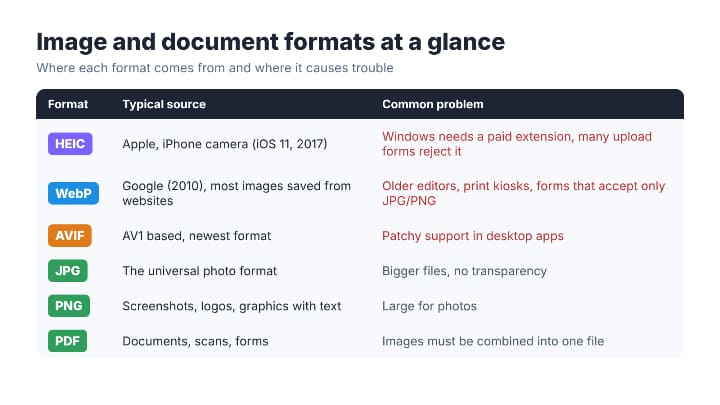
- HEIC (High Efficiency Image Container) is what iPhones have saved by default since iOS 11 in 2017. A HEIC photo is often about half the size of a comparable JPG, which is great for phone storage and terrible for compatibility.
- WebP was introduced by Google in 2010 for the web. Most images you right click and save from news sites, shops and social networks today arrive as .webp files.
- AVIF is the newest of the three, based on the AV1 video codec. Browsers support it, a growing number of sites serve it, and plenty of desktop software still ignores it.
All three are technically better than JPG. The problem is that the world around them (office software, upload forms, printers, older laptops, government websites) moves much more slowly than phones and browsers do.
The five most common "this file won't open" situations
1. iPhone photos on a Windows PC
Windows 11 can display HEIC photos, but only after you install the HEVC Video Extensions from the Microsoft Store, which costs $0.99 in the US. Without it, the Photos app shows an error or a blank thumbnail. Many people do not want to pay, and the extension does not help when you have to upload the photo to a website that only accepts JPG.
2. Images saved from websites
Your browser opens WebP without complaint, so you never notice the format until you try to use the picture somewhere else: an older version of an image editor, a presentation tool, a photo printing kiosk or an online form that lists "JPG, PNG" as the only allowed types.
3. AVIF files nobody else can open
AVIF downloads are increasingly common, especially from sites that care about speed. Support in desktop apps is patchy, so the safest move is to convert the file to JPG or PNG before sharing it.
4. Upload forms with strict size limits
Job portals, university applications, visa forms and exam registrations often ask for a photo "under 50 KB" or a document "under 200 KB". A modern phone photo can easily weigh 3 to 5 MB, so you need to shrink it a lot without making your face or the text unreadable.
5. "Please upload a PDF"
You photographed a contract or an ID card, but the form wants a single PDF. Combining several photos into one tidy PDF is a separate step that many people do not know how to do quickly.
НаверхWhich format to use, and when
Before converting anything, it helps to know what you are aiming for. A simple rule of thumb:
- JPG for sharing photos with anyone, anywhere. It is the safest choice when you are not sure what the other side can open.
- PNG for screenshots, graphics with text, logos and anything that needs a transparent background. PNG keeps sharp edges and never adds blur around letters.
- WebP for images you put on your own website, where smaller files mean faster pages.
- PDF for documents, forms, scans and anything that will be printed or signed.
- HEIC for keeping originals on your phone or in iCloud. Convert copies when you need them, and keep the originals as they are.
How to convert files without installing anything
You can buy a codec, install a desktop editor, or email the photos to yourself and hope something converts them along the way. For most people, the fastest route is a browser based converter: you drop the file in, choose the target format and download the result.
- No signup and no watermark. Converting a photo should not require an email address.
- Batch processing. If you have 40 holiday photos in HEIC, you want to convert them all at once and download a single ZIP.
- Target size presets. For upload forms, a tool that compresses an image or PDF to an exact limit (such as 20 KB or 200 KB) saves a lot of trial and error.
- Processing in the browser. When the conversion happens on your own device, the file never has to leave it.
- One place for everything. Images, PDFs and documents in the same tool means one bookmark instead of six.
If you deal with these formats regularly, it is worth bookmarking a free online file converter that ticks those boxes. FileKiwi, for example, handles HEIC, WebP, AVIF, PNG and JPG, turns photos into PDFs, merges and compresses PDFs, and has presets for common upload limits, all without an account. Whatever tool you pick, test it once with a photo that does not matter before you need it in a hurry.
A quick privacy checklist before you upload
Converting a meme is one thing. Converting a passport scan is another. Before you drop a sensitive file into any website, spend ten seconds on these questions:
- Where is the file processed? Tools that work inside your browser are the safest option for personal documents. If a file has to be uploaded to a server, the site should say so.
- How long is it kept? A trustworthy service tells you clearly whether uploads are deleted, and when.
- What is hidden inside the photo? Phone photos carry EXIF metadata, which can include the exact GPS location where the picture was taken, the date and the phone model. Check it, and strip it if you are posting the image publicly.
- Is the site who it claims to be? Look at the address bar. Lookalike domains and pages full of fake "Download" buttons are a red flag.
Stop the problem at the source
If you constantly fight with HEIC files, you can change how your iPhone saves and shares them:
- Go to Settings, Camera, Formats and choose Most Compatible. New photos will be saved as JPG (and videos as H.264) instead of HEIC and HEVC. Files get bigger, but they open everywhere.
- Go to Settings, Photos and, under Transfer to Mac or PC, choose Automatic. The iPhone will then convert photos to a compatible format when you copy them to a computer over a cable.
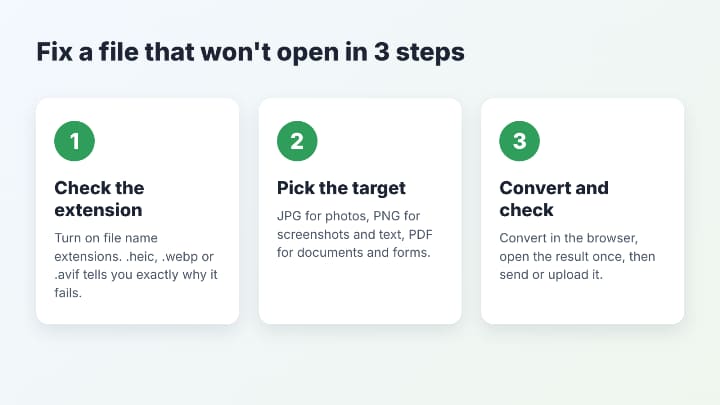
On a computer, get into the habit of checking the file extension before you send or upload anything. On Windows, enable "File name extensions" in the View menu of File Explorer. On a Mac, select "Show all filename extensions" in Finder settings. Seeing ".heic" or ".webp" at the end of a name tells you immediately why a form is refusing the file.
НаверхThe bottom line
HEIC, WebP and AVIF are not going away. They save storage on your phone and make websites load faster, and over the next few years more software will open them natively. Until then, the mismatch between modern formats and older systems is something everyone runs into, usually at the worst possible moment.
Know the five common situations, know which format each destination expects, and keep one reliable converter bookmarked. That turns "this file won't open" from a twenty minute headache into a one minute fix.
Наверх